
Start Here
About
Speaking
Book
Join The Table
Parent Course
Resources
English
Order my debut book! - 5 Habits of the Tech-Ready Family 📑


MacBooks use Apple's native parental controls called, "Screen Time." If you have already set up Screen Time settings on an iPhone or iPad, then enabling controls on a MacBook will feel pretty familiar. If you haven't touched Screen Time at all, that's okay! We list everything out step by step.
In March 2026, Apple released the MacBook Neo, a cheaper Apple laptop. It cost less than other MacBooks because of its weaker processor and small display size. Thankfully, the MacBook Neo still uses the same operating system as other Macbooks (macOS), which means all the settings match.
So, if you have a MacBook Neo and are wondering if this guide still applies, the answer is yes!
We believe the best way to prevent digital harm on all digital devices is by following our 5 Layers of Protection:
Layer 1: Relationships
Layer 2: WiFi (Router)
Layer 3: The MacBook Device
Layer 4: Location
Layer 5: App
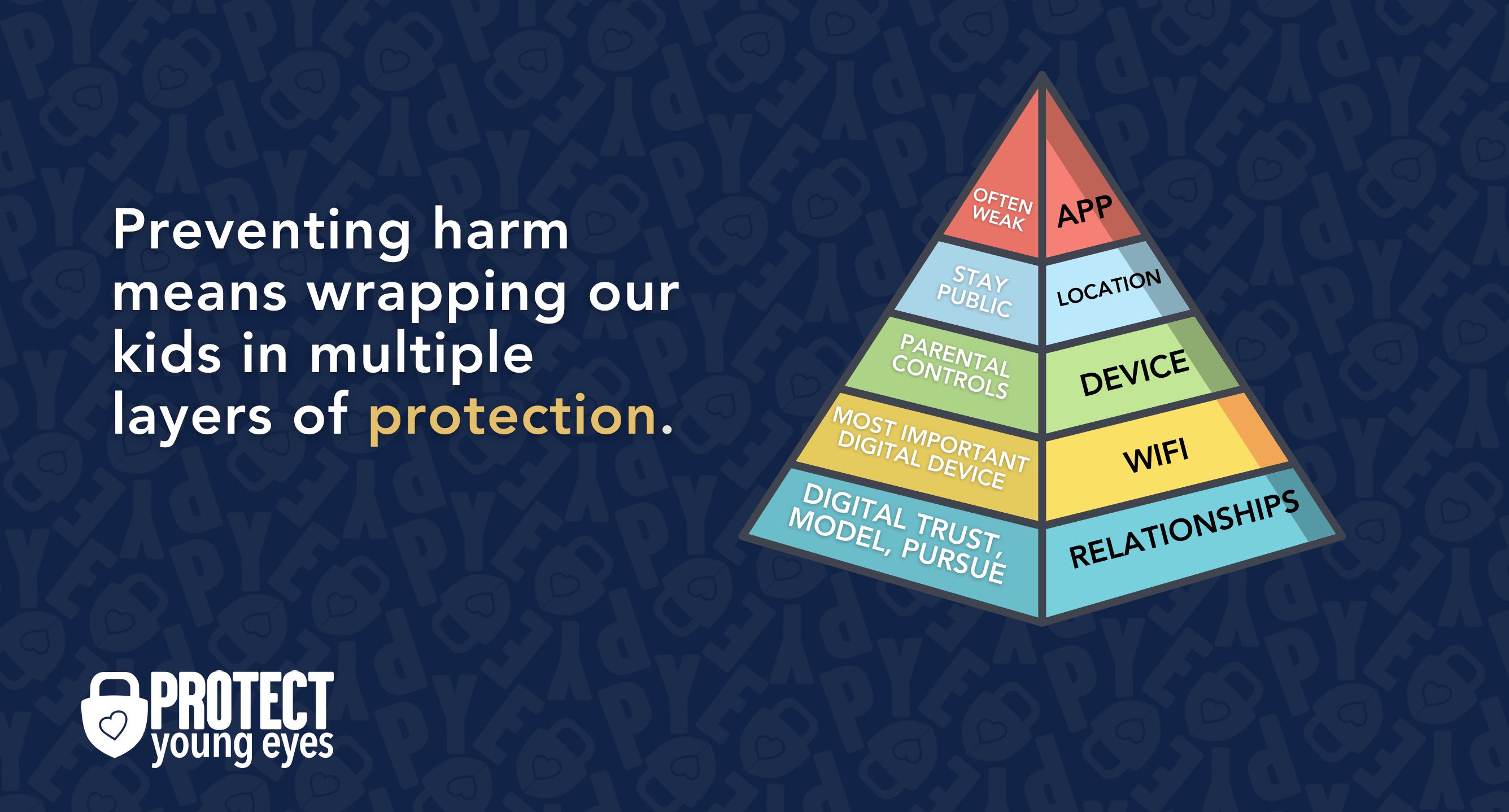
In a digital world that is increasingly hostile toward children, our response must be strong and relevant. That's why we believe in wrapping our kids in multiple layers of protection. One or two are often not enough.
To learn why our relationships with our children are the foundation of protection and how to build digital trust (Layer 1), here are relevant blog posts:
The Router is the most important digital hardware in the house! And, it’s often the most ignored. But, you are responsible for every digital click on your home’s network, so monitoring and controlling its activity is important.
Popular options for parents are:
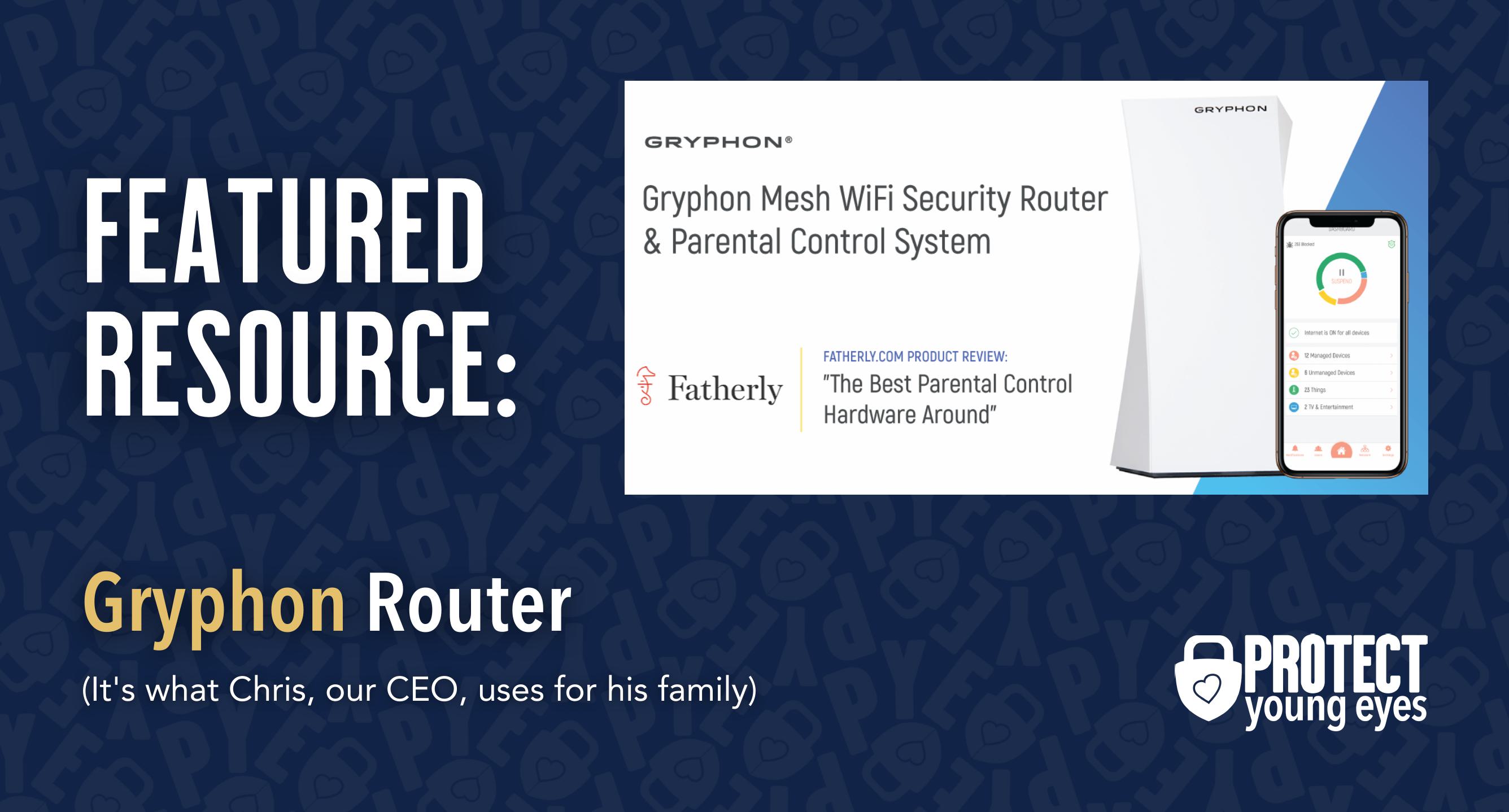
Bonus content – we tested the best routers out there and here’s WHY we picked Gryphon.
All MacBook parental controls run through Screen Time, which replaced the old "Parental Controls" panel starting with macOS Catalina. Here's how to set it up properly, step by step:
This is the most important first step, parental controls don't work properly on an administrator account. Your child needs their own standard (non-admin) account.
Family Sharing lets you manage your child's settings remotely from your own device, including from your iPhone.
Parents often ask, “Should I create a separate Apple ID for my child?” And my response is YES. I want to have complete separation from my activity, and I want visibility into their activity. But you retain control over that Apple ID by knowing its login credentials.
One nice thing about Apple’s Screen Time is that a parent can set up Screen Time even if the child is between 13 and 17. This is unlike Android (Google), which won’t let a parent create a Gmail account for a child aged 13+.
Don’t miss Ask to Buy. We always tell parents to control the App Store, which includes millions of apps, and this is one of the best ways.
For younger children, you can limit who they can call or message through Apple's apps.
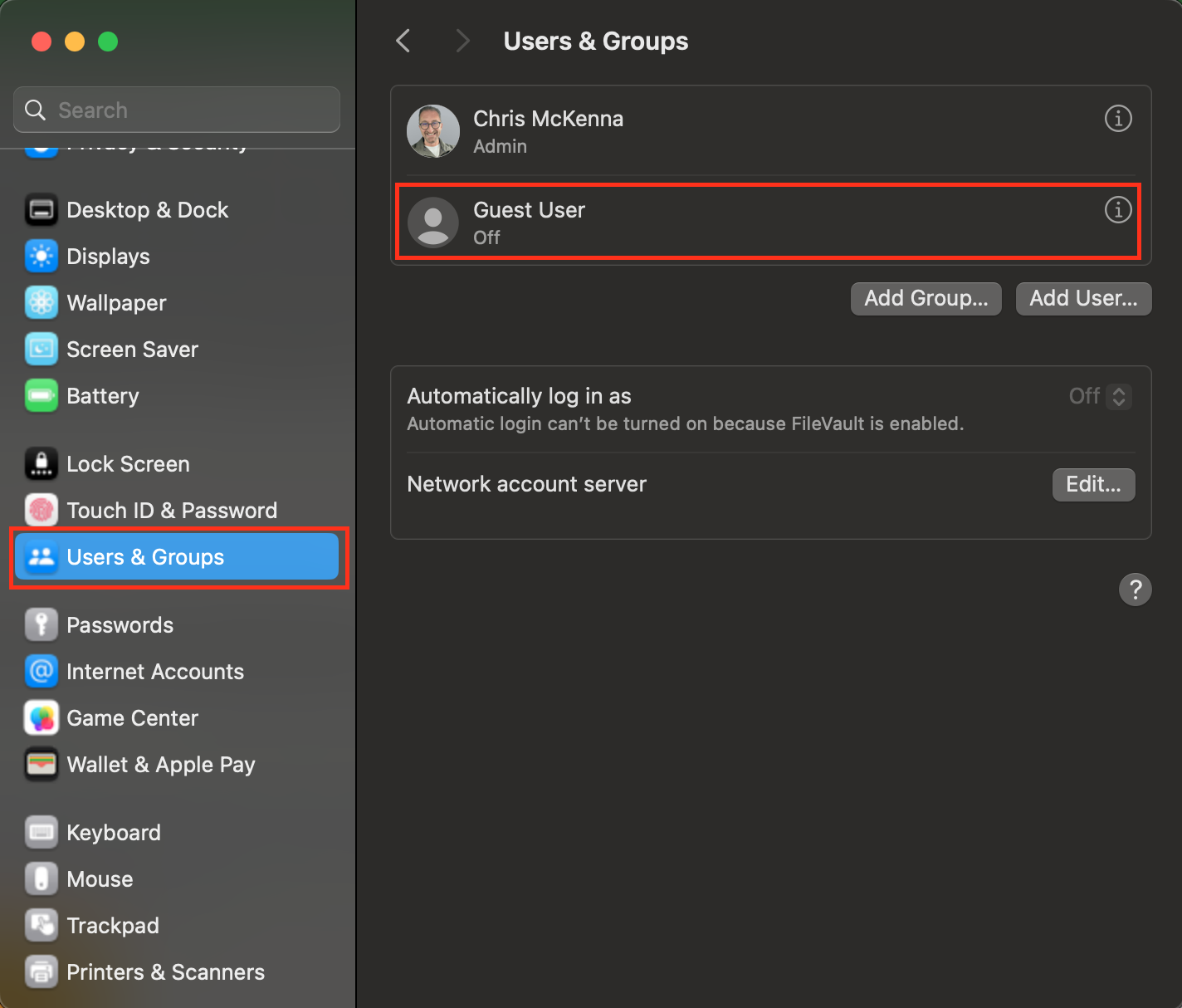
Guest Access is a setting that can be exploited to find porn, working around some of the controls and layer of protection. Here's how to disable it:
Apple Icon -> System Settings -> Users & Groups -> Guest User -> Set to "Off." See the image below.
A "clean" DNS allows you to filter out content by having more control over how your computer connects to sites on the internet. See our full post about this here: How to Block Porn On Any Device. For Free.
CleanBrowsing is one of the best "clean" DNS option out there, and they have great instructions for setting up its service - How to Set Clean DNS on a Mac Computer.
Once you’ve done this, then follow these steps in order to lock the changes into the Mac:
This way, your child can't undo any of the changes you just made.
Screen Time gives you weekly reports showing exactly what your child did on the Mac, which apps they used, which websites they visited, and how long they spent on each.
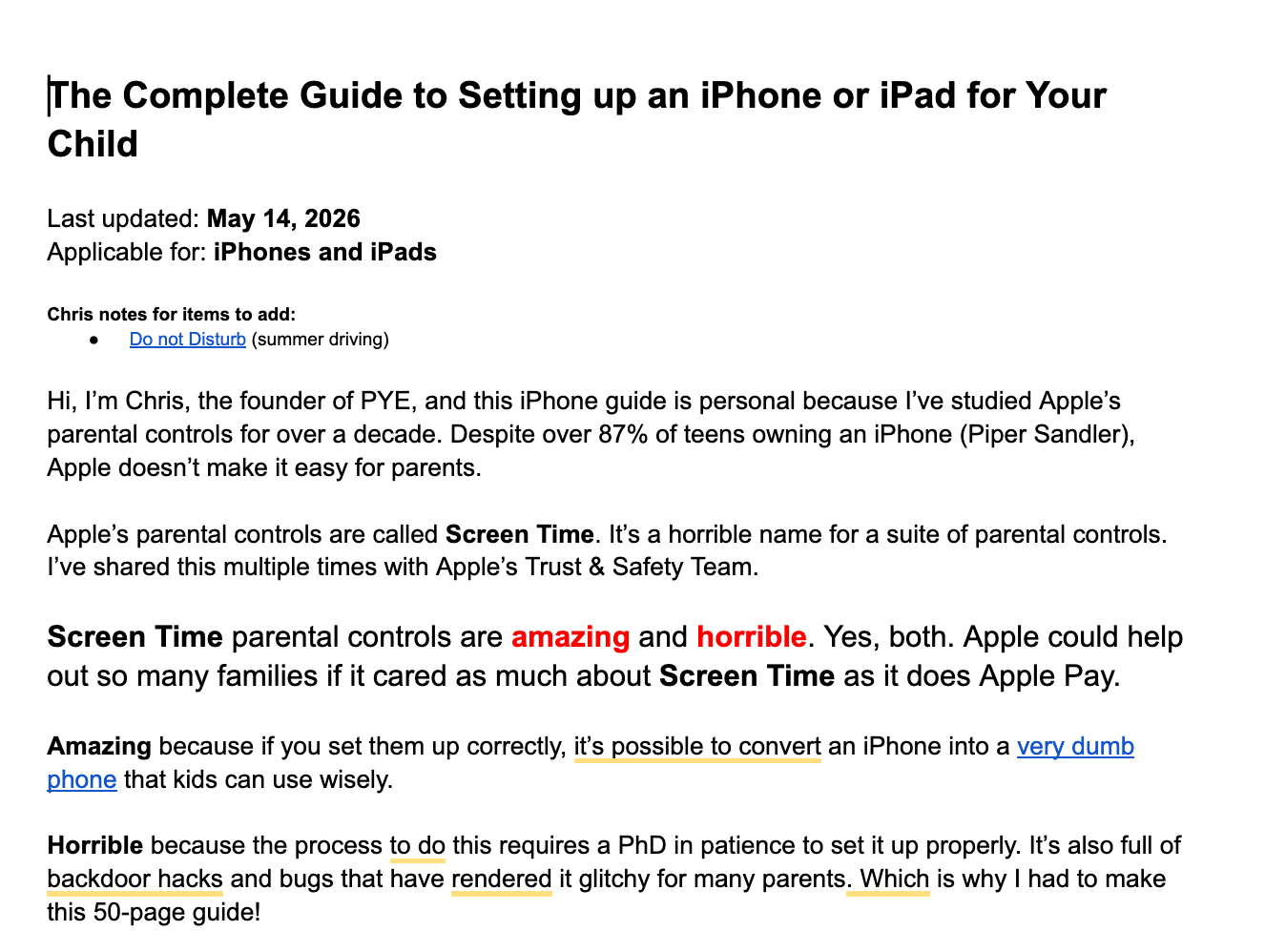
What we just laid out here is a fairly basic approach to enabling screen time settings on any MacBook. However, Apple's Screen Time Controls are often flawed. So, we created the world's greatest FREE Screen Time Guide.
Now, this is made with iPhones and iPads in mind, but many of the Screen Time settings are similar on MacBooks, although they might not all be exactly the same. If you have any questions about Screen Time settings, the answer is probably in this guide!
Click here or the image below. We keep it constantly updated!
Guard the location of the device. Why? Because where kids use technology often dictates how they use their technology.
Related post: The 5 Worst Places for a Kid to be Online
We have strong opinions about managing where kids use their tech. For example, let’s keep all internet-ready devices out of bedrooms at night, where kids take more risks, and sleep is constantly interrupted.
Just know that the combination of boredom, bedrooms, and darkness (the Toxic Trio) often lead to bad digital choices, whether you’re 14 or 40 years old!
To learn why apps are often the least protected digital spaces and how to set them up safely (Layer 5), here are popular app reviews:
*There may be affiliate links throughout this post because we’ve tested and trust a small list of parental control solutions. Our work saves you time! If you decide that you agree with us, then we may earn a small commission, which does nothing to your price. Enjoy!
Two actions you can take!
Read about our team’s commitment to provide everyone on our global platform with the technology that can help them move ahead.
Honored to join Bark and other amazing advocates in this film.
Joined a coalition of global experts to present on social media's harms.
We shared our research and experience with the US Senate Judiciary Committee.