Start Here
About
Speaking
Book
Join The Table
Parent Course
Resources
English
Order my debut book! - 5 Habits of the Tech-Ready Family 📑


Content and feature risks in the app.
Spotify is one of the most popular music apps available across mobile devices (both Apple and Android), PCs, Macs, Chromebooks, tablets, and even gaming consoles such as PlayStation and Xbox.
Even on a music streaming app, kids can direct message each other, find sexual and graphic content, and even watch YouTube videos.
For Younger Kids, we recommend using Spotify Kids, which we highlight later.
-images-0.webp)
Spotify is available for free with ads and also offers Spotify Premium (click here to see current prices) for a monthly price based on your plan. Be aware, they change their prices all the time! Click the link above to see what they are currently offering.
Their interface offers a few different menus: Home (where you find suggested content, including Clips – we explain below), Search (where you can find just about anything on Spotify), and Your Library (where you can find your playlists, liked songs, and downloaded content).
-images-1.webp)
Users can stream music, make playlists, watch Clips, view events, buy merch, and listen to podcasts. Without effective parental controls, sexual content is easily found.
Artists have specific pages that look a little different. At the top of an artist’s page, you’ll see three tabs: Music, Events, and Merch. Events show where they are currently touring, and Merch will open up an internet browser and take you to “shop.spotify” which lets users buy apparel, records, and other items the artist offers. The Music tab is one of the places you can watch short-form videos.
-images-2.webp)
It’s more than music! Podcasts and shows are everywhere, and Spotify even has its own short-form video format, called “Clips.” The good news is that you can turn it off. Learn how, below!
In the Music tab of an Artist’s page, you can see their most popular songs, albums, and a section titled “Videos from ___” which features videos from the artist, up to 30 seconds long. Here’s an example from Ed Sheeran’s Spotify page:
-images-3.webp)
The other place where you can watch Clips is by tapping one of the three videos on your Home page, found under the heading titled, “Discover new songs.” When tapping on these videos, you will get a clip from a song along with the video and a few hashtags that relate to the genre. From here – users can click the hashtag and continue viewing more clips from more artists. The content depends on the kind of music they often listen to, the specific hashtag they click on, and whether or not explicit content is enabled.
-images-4.webp)
In our testing, this didn’t populate much inappropriate content, but it’s tough to tell exactly what could be found by scrolling through video after video and tapping through different hashtags. Searching for inappropriate content is extremely easy on Spotify (see below).
Just about all the videos found on Spotify are music videos, or maybe a clip from a live performance which could include the artists talking to the audience. However, there is a “hack” that lets users watch YouTube videos.
Apart from inappropriate content, searching for “YouTube Videos” and toggling to show results for podcasts and shows will reveal multiple “podcasts” that are just YouTube videos. Spotify supports video podcasts, so you can watch your favorite podcast show, but this feature has also made home to users upload YouTube videos. While there doesn’t seem to be any explicit videos posted in this format, things always slip through and there are always risks online.
Finding inappropriate and explicit images and audio is so easy to do on Spotify. Even with explicit results turned off. Searching for “sex” and other terms populate some pretty shocking results for a “music streaming” app:
-images-5.webp)
As you can see, for whatever reason two commas ",," reveal highly inappropriate and borderline pornographic thumbnails (one of which we had to blur out), podcast audio, and playlists with descriptions that can have links and words of all kinds. Searching for “sex” yields much of the same results. Even worse, this was with Explicit Results turned off… And this is not a new problem, we posted about this on Instagram back in December of 2022 – Spotify has a Big Problem.
Spotify seeks to be as social as possible. You can add friends, work on playlists together, and see what others are listening to.
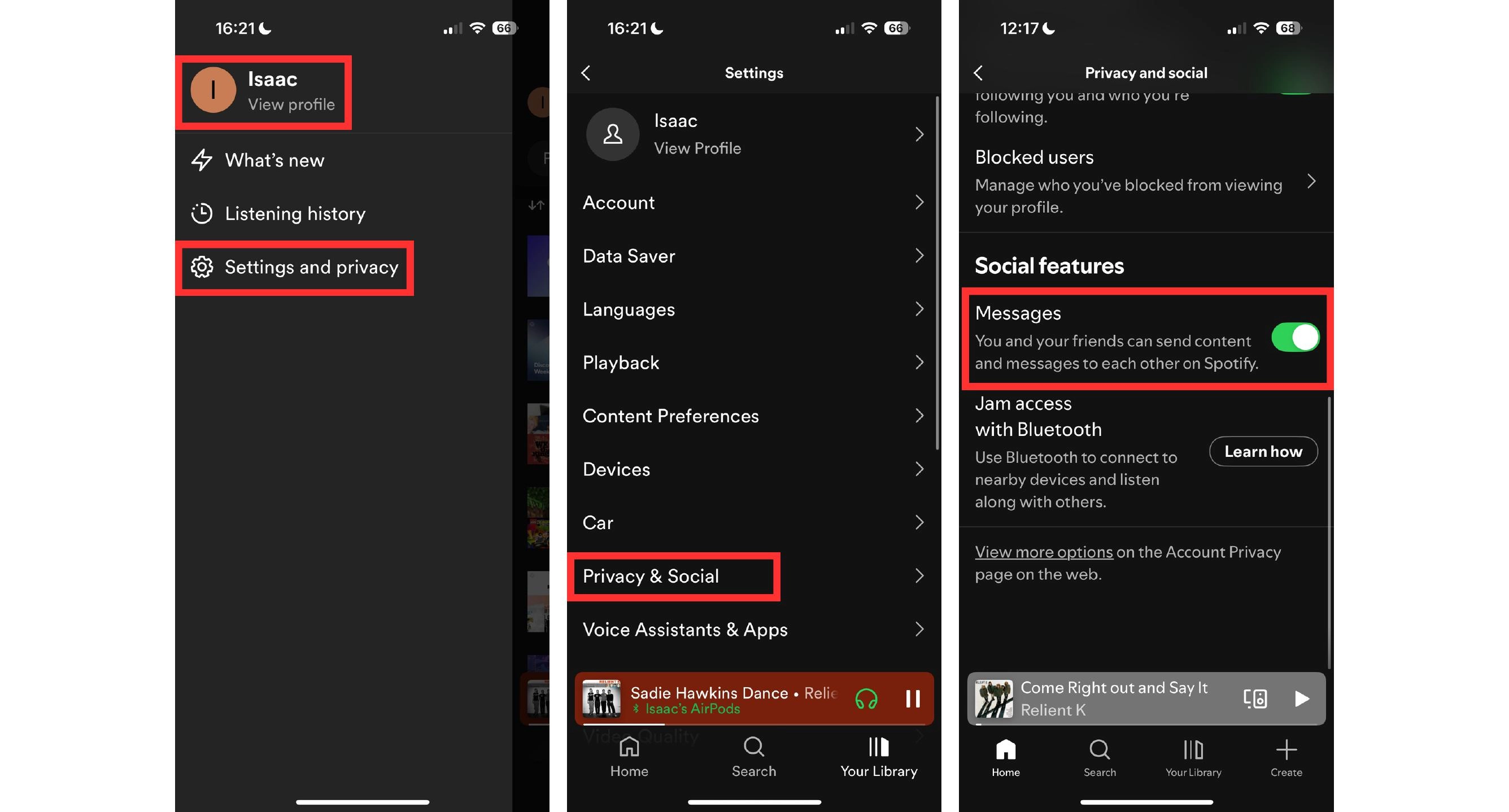
And recently, they just added direct messaging. To view messages or send a new message, simply select your profile and there will now be a "Messages" section.
Recent conversations will show first, followed by a spot to send a new message. Spotify will "suggest" users for you to message based on who you have shared Spotify content with, or if you share a Premium plan with that person.
In testing, we discovered that Spotify's direct messaging is text only. No pictures or videos from your device can be shared. It's just the keyboard, as shown in the image below.
Links do not populate, so there shouldn't be any backdoor internet access from direct messages on Spotify. However, it did allow us to copy and paste links. On the receiving end, we could copy the link as well. Sneaky kids could still maybe use this feature to copy URLs and paste them somewhere else.
-images-8.webp)
The only way to share content that isn't just text is by sending a song or playlist on Spotify in a direct message.
That will populate the image for that content within the direct message. We've heard of stories where users would make custom playlists with explicit thumbnails to share inappropriate content over Spotify. But this method was clunky and often included messaging on another app first. Now, with direct messages on Spotify, it's possible to keep all communication within Spotify itself.
Kids are sneaky! And predators know the loopholes too.
Users do have to opt-in for messaging on Spotify, and they must also accept new message requests. We show how to disable messaging below.
There are a few other helpful settings you might want to toggle off here. If you track their activity this way, there is another feature you need to know about:
“Private session” allows users to hide all listening activity for up to 6 hours at a time. It’s Spotify’s “incognito mode.” If you rely on their activity to keep up with what they listen to, this feature might ruin that plan. If you suspect your child is private browsing, call this feature out! Seek to solve this issue through an open and honest relational approach.
Regardless of the app, three actions mitigate the risks we’ve shared. We teach these actions in our parent presentations:
We explain each of them briefly below. If you’ve already set up approvals for downloads and have used the app, please skip to the In-App Controls & Settings.
You can control app stores by requiring permission for apps to be downloaded. This is ensures your child doesn’t have access to an app without your knowledge. Here are the steps (for Apple and Android users):
For Apple Devices:
To require permission to download an app, you’ll need to set up Screen Time and Family Sharing (Apple’s Parental Controls). We explain this process step-by-step in our Complete iOS Guide (click here).
Once Screen Time and Family Sharing are established, here’s how to require permission to download apps on an Apple device:
For Android Devices:
You’ll have to use Family Link (Android’s parental controls) to ensure you retain control over what apps are downloaded. We explain this process step-by-step in our Android Guide (click here).
Once Family Link is established, here’s how to require permission to download apps on an Android device:
This is our tried-and-true method of determining whether a specific app is safe for your specific child.
Before you let your child use it, download the app and use it for 7 days.
Create an account with your child’s age and gender and use it for 7 days. Play through a few levels, review the ads, see if anyone can chat with you, and poke around like a curious child.
After a week, ask yourself, “Do I want my child to experience what I did?” Even if you decide to allow them to download the app, now you have a basis for curious conversations about the app when you check in.
Spotify recently made their controls free for select countries (Argentina, Australia, Brazil, Colombia, Denmark, France, Germany, Italy, Mexico, Netherlands, New Zealand, Portugal, Spain, Sweden, the U.S., and the U.K.).
This is a great step since this feature used to be paywalled through a family plan. But now, parents can set up a "managed account" for their child, that is separate from their own. Here's how it works:
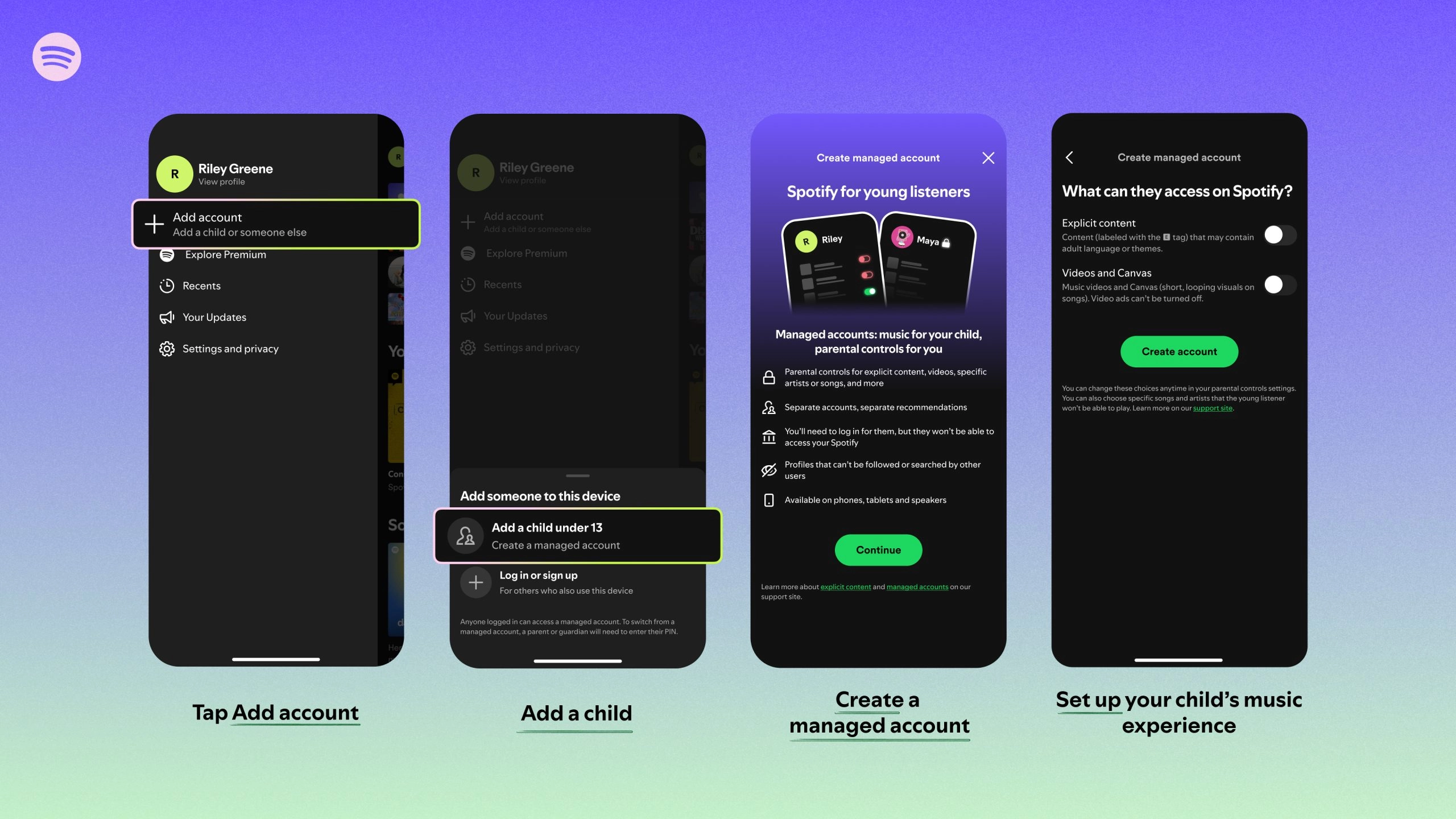
This is available for all plans, even free ones! The managed accounts will not be able to change content settings without a PIN number that you will set.
What if my child already has an existing Spotify Account?
The biggest downside here is that if your child already has an existing account, there is not a way to transfer their account into a "managed" account for free.
For those with a preimum family plan, you can invite your child into the family plan and then set up controls that way. Otherwise, parents would have to make a new account with the steps above to apply these controls.
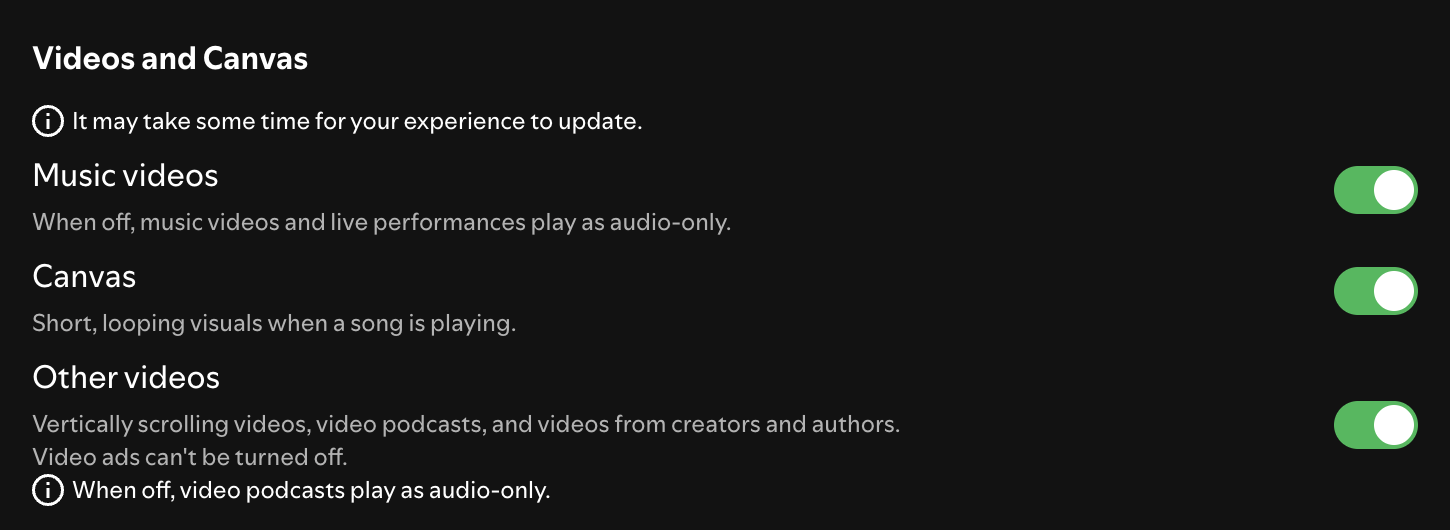
Thankfully, Spotify added the ability to turn off videos. Here's how:
Watch this video, here, to see the steps!
Similar to YouTube, Spotify has a version of their app that’s made for kids. It has actual parental controls, but it is made for much younger children. Tweens and teens probably won’t enjoy this app very much.
4+ Apple App Store Rating, E (Everyone) Google Play Store Rating
Spotify Kids Pricing: it comes with a Premium Family subscription (6 accounts).
-images-9.webp)
Spotify Kids has custom playlists and two age-based options (ages 0-6 or 5-12) for curated content.
The app has bedtime stories, top hits, suggested channels, and a searchable library. Account creation includes setting up a 4-digit code to get access to the “Grown Ups” section of the app. Here you will find the Listening History of each child. And if you find a song that you don’t think is appropriate for your child, just tap the block icon.
There are still a few PG-13+ titles and albums in the age 5-12 category, but it’s much better than what’s accessible on the normal version of Spotify. Still, parents should always be involved when young kids are using tech.
Again, remember that tweens and teens probably won’t enjoy Spotify Kids. But for those younger ages, this is a great option!
Without supervision, the answer is no.
The 13+ / teen rating is incorrect. With the amount of inappropriate images that can be found, direct messaging, sexual “podcasts” (ASMR), and lack of effective controls, Spotify poses a lot of risks – even with supervision. If you allow your child to use Spotify, please do the following:
If all of these aspects are met, your kid should be relatively safe. However, one search of the word “sex” or typing in those two commas “,” could still yield borderline pornographic content, audio, and images. Please be careful, and consider if Spotify is worth the potential risk for your child or family.
Two actions you can take!


Read about our team’s commitment to provide everyone on our global platform with the technology that can help them move ahead.
Honored to join Bark and other amazing advocates in this film.
Joined a coalition of global experts to present on social media's harms.
We shared our research and experience with the US Senate Judiciary Committee.